
Velox AI Input – Turn Voice into Text Instantly
Privacy‑first, AI Voice Input
Title: Velox AI Input – Turn Voice into Text Instantly
URL Source: https://ai-voice-input.com/
Markdown Content: Built exclusively for macOS Sonoma and later
Turn your voice into clear, polished text with one key press.
Velox AI Input replaces traditional dictation with a calm, focused voice input flow. Hold the Option (⌥) key, speak naturally, and let Velox handle transcription, light correction, and pasting into the right app – without extra windows or clutter.
Privacy‑first, no proprietary servers
macOS native UI with a floating HUD
15‑day free trial · $4.99 one‑time
Platform: macOS 14.6 (Sonoma) or later · Apple Silicon & Intel
**Listening…**Hold Option (⌥), speak, release to finish.
Casual style
ESC to cancel
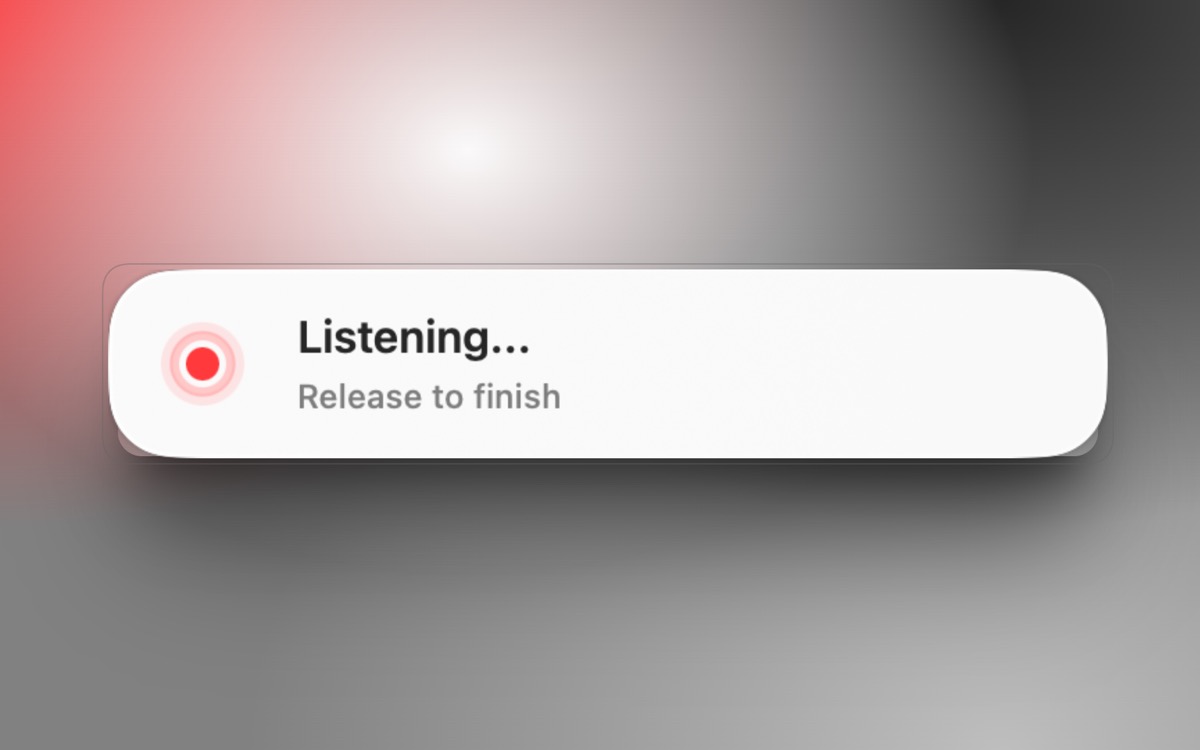
Hold to speak, release to paste
Start recording by holding the Option (⌥) key. Release to stop, transcribe, gently refine, and paste into the active app using a small floating panel.
Light correction, not over‑writing
Velox AI Input turns speech into clear sentences with proper punctuation and basic grammar fixes, while preserving your intent and writing style.
Clipboard protection built‑in
Before pasting, Velox stores your clipboard (including text, images, and files) and restores it automatically afterward, so you never lose what you copied.
Smart focus awareness
If you switch apps while Velox is processing, it will safely cache the result instead of pasting into the wrong window. You can then copy it from the panel when you are ready.
Your own API keys and endpoints
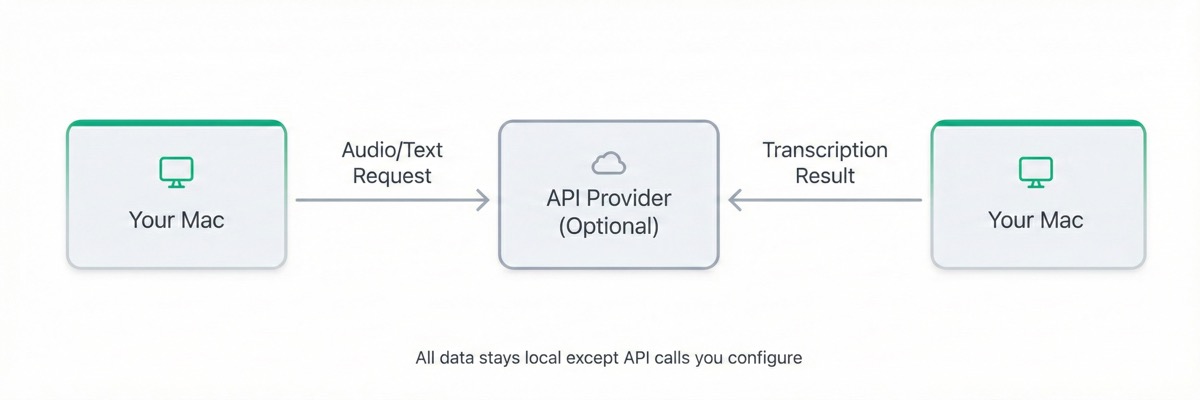
Velox connects to Whisper‑compatible STT providers that you configure yourself (including local instances). No proprietary servers or hidden relays.
7 languages, dual-track system
The interface supports 7 languages (EN, 简中, 繁中, 日, 韓, DE, ES). UI language and AI output language can be set independently – use English UI while getting Traditional Chinese output.
1
Press and hold Option (⌥)
The floating panel appears near the bottom of your screen and starts recording from your microphone. You can place the panel anywhere; its position is remembered across sessions.
2
Speak naturally, then release
When you release Option, Velox stops recording, converts your speech to text, removes obvious artifacts, and applies light rewriting for clarity and punctuation.
3
Velox pastes or safely caches the result
If the focus has not changed, Velox pastes into the active app and restores your clipboard. If focus changed, it keeps the text in a small HUD where you can copy it manually.
Press ESC at any time during processing to cancel the current run.
$4.99 USD · one‑time purchase
Try the full app for 15 days before you decide. The in‑app purchase is handled by Apple’s StoreKit 2 framework with standard App Store receipts.
- 15‑day free trial on first installation.
- Lifetime access on this Apple ID after purchase.
- No additional subscription from Velox itself.
- Speech and text processing may incur usage charges from your configured third‑party API provider (for example, Groq or a Whisper-compatible service).
System requirements
macOS 14.6 (Sonoma) or later
Microphone access
Accessibility permission for paste automation
Recommended setup
Stable internet connection (for cloud providers)
API key from a Whisper‑compatible STT service
8 GB RAM or more for heavier workloads
Velox does not bundle or resell any third‑party speech or text services. You bring your own API keys and can choose whether those services are cloud‑based or self‑hosted.
On‑device behavior
Audio is kept temporary
Your microphone input is recorded into a temporary file inside the macOS sandbox and deleted after each run, whether it completes or is cancelled.
Credentials
API keys stored in Keychain
Any API keys you enter for speech or text providers are stored securely in the macOS Keychain and are never synced to external servers.
Context
Limited app context, no content
When processing a run, Velox may read metadata such as the frontmost app name, bundle ID, and window title to adjust its behavior. It does not read or store the text content of your windows.
History
Short, local history only
For convenience, Velox keeps a small, rotating history of recent runs in local storage. This history stays on your device and is not uploaded.
Who develops Velox AI Input?
Velox AI Input is developed and maintained by Wuhu Manxiu Technology Co., Ltd. The company is responsible for support, maintenance, and future updates.
How do I contact support?
For support, feedback, or data‑related questions, please email [email protected]. We typically respond within a few business days.
Does Velox work without an internet connection?
Velox itself is a native macOS app. Speech and text processing require the third‑party providers you configure (for example, Groq or a local server). If you use a local, self‑hosted provider, Velox can function entirely on your own network.
What permissions does Velox request?
Velox requests microphone access for recording and Accessibility access to simulate the standard paste shortcut (⌘V). It does not request broad file system access or access to your photos, contacts, or calendars.
How can I cancel or delete my data?
Velox does not maintain user accounts or store data on external servers. To clear local history and configuration on your Mac, you can remove the Velox app and its preferences. Any data held by your chosen API provider is subject to that provider’s own policies.